How to Save an Outlook Email as PDF
There are two ways to turn an email into a PDF in Outlook: the Print command that Outlook already has, one email at a time, and a browser extension that saves a whole thread or several selected emails into one file.
Save an email as a PDF in Outlook on the web
- Open the email.
- Select More actions (the three dots ⋯) in the email's header, then Print.
- A preview of the email opens. Select Print at its top.
- In your browser's print window, set Printer (Destination in Chrome) to Save as PDF. On Windows, Microsoft Print to PDF works too.
- Select Save (or Print), choose a folder and a file name, and save.
Any account can do this: work, school or personal, at no cost. Its limits: Microsoft's steps cover one message at a time, so a whole thread or a set of emails does not go into one file, and you go through the print window again for every email.
In the Outlook app for Windows, new and classic
New Outlook for Windows uses the same steps as the web: More actions, then Print, then Print, and pick Microsoft Print to PDF as the printer.
Classic Outlook for Windows: open the email, then File, then Print. Pick Microsoft Print to PDF as the printer, select Print, then choose a folder and a file name. Outlook's own Save As has no PDF option.
Turn a whole email thread into one PDF
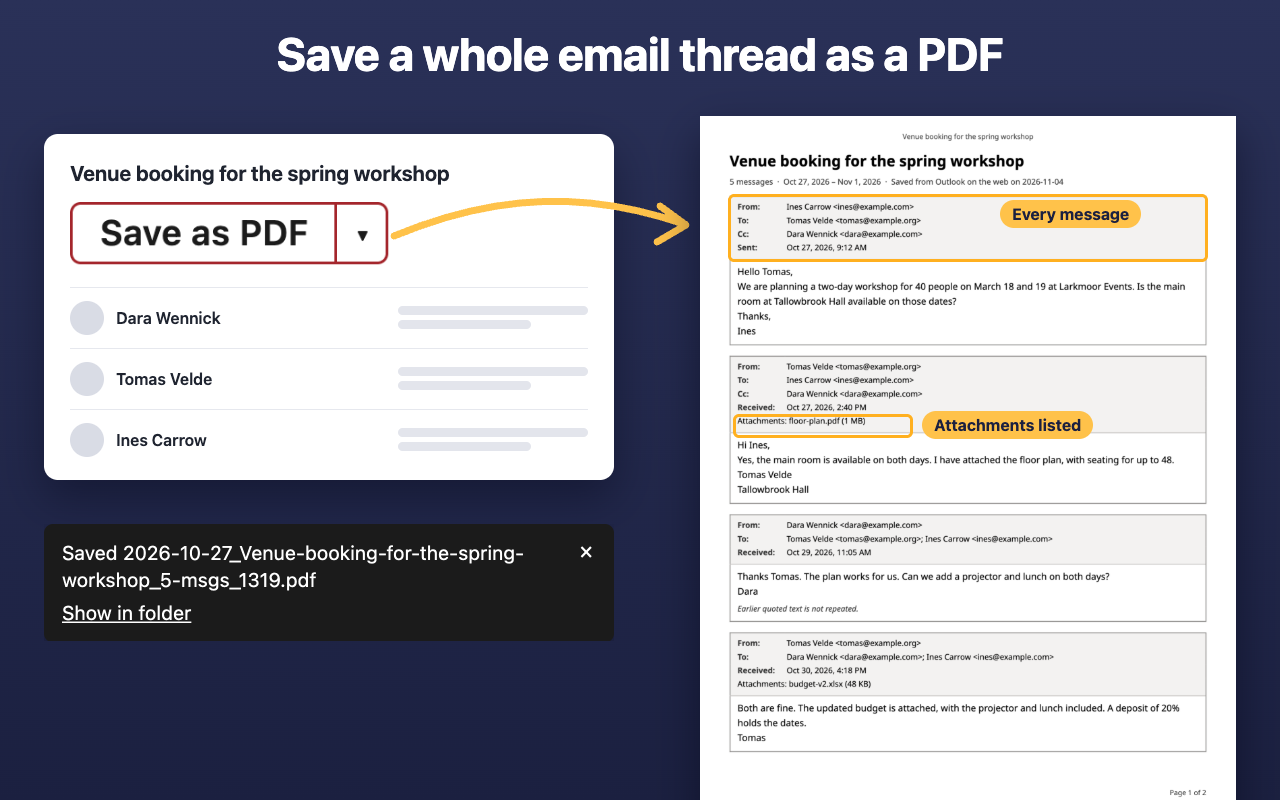
Save Outlook Email as PDF & Reply Templates is our browser extension for Outlook on the web in Microsoft Edge. It adds a Save as PDF button to the reading pane.
Add to Microsoft Edge- Install the extension, then open Outlook on the web in Microsoft Edge.
- Open a conversation. A Save as PDF button appears next to its subject.
- Click it to save the whole conversation, or choose This message only in its ▾ menu.
The PDF goes to your Downloads folder, named by date and subject. Every message has its own frame with From, To, Cc, the date and the names of its attachments, oldest message first. If Outlook's interface is in English, earlier text hidden behind Show message history is included; in other languages the PDF notes that it may be missing. Repeated quotes are left out (a setting keeps them).
If an email has images from other websites, you choose: Save with images opens your browser's Save as PDF window with them; Save without images makes the file at once.
Download several emails as one PDF
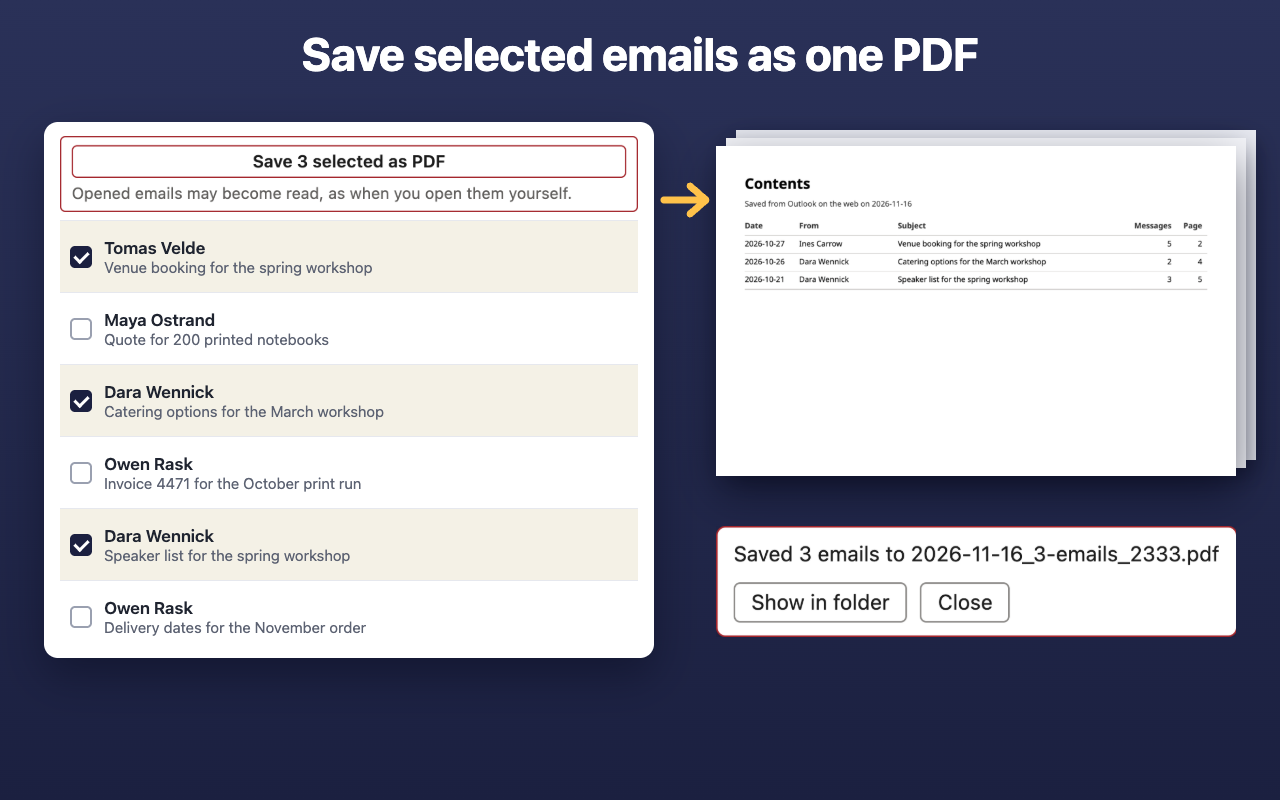
- Tick the emails in Outlook's message list, up to 50 at a time.
- Click the button in the bar above the list, for example Save 3 selected as PDF.
You get one PDF with a contents page: the date, sender, subject, number of messages and page of each conversation, then the conversations themselves. The extension opens the emails one by one in the reading pane, as your own clicks would, with progress and a Stop button, so keep the tab open and the reading pane on. Opened emails may become read, as when you open them yourself.
The extension makes the PDF in your browser and sends nothing anywhere: no server, no account, no analytics. Details are in the privacy policy; more about the extension, including its reply templates, is on the product page.
Questions
Can I save an Outlook email as PDF with its attachments?
Not inside the file. The PDF lists each attachment by name and size under its message; save the files themselves from Outlook.
Does the extension work in Chrome or in the Outlook desktop app?
Not yet in Chrome: it works only in Outlook on the web in Microsoft Edge for now, and a Chrome version is planned. The desktop apps do not load browser extensions; use the Print steps above there.